The DECORDS calculator accepts an STL or OBJ up to 20 MB and 250,000 triangles. Check the physical dimensions and units after uploading. Seeing a model in the viewer does not confirm that every feature can be manufactured.
Export geometry in a supported format
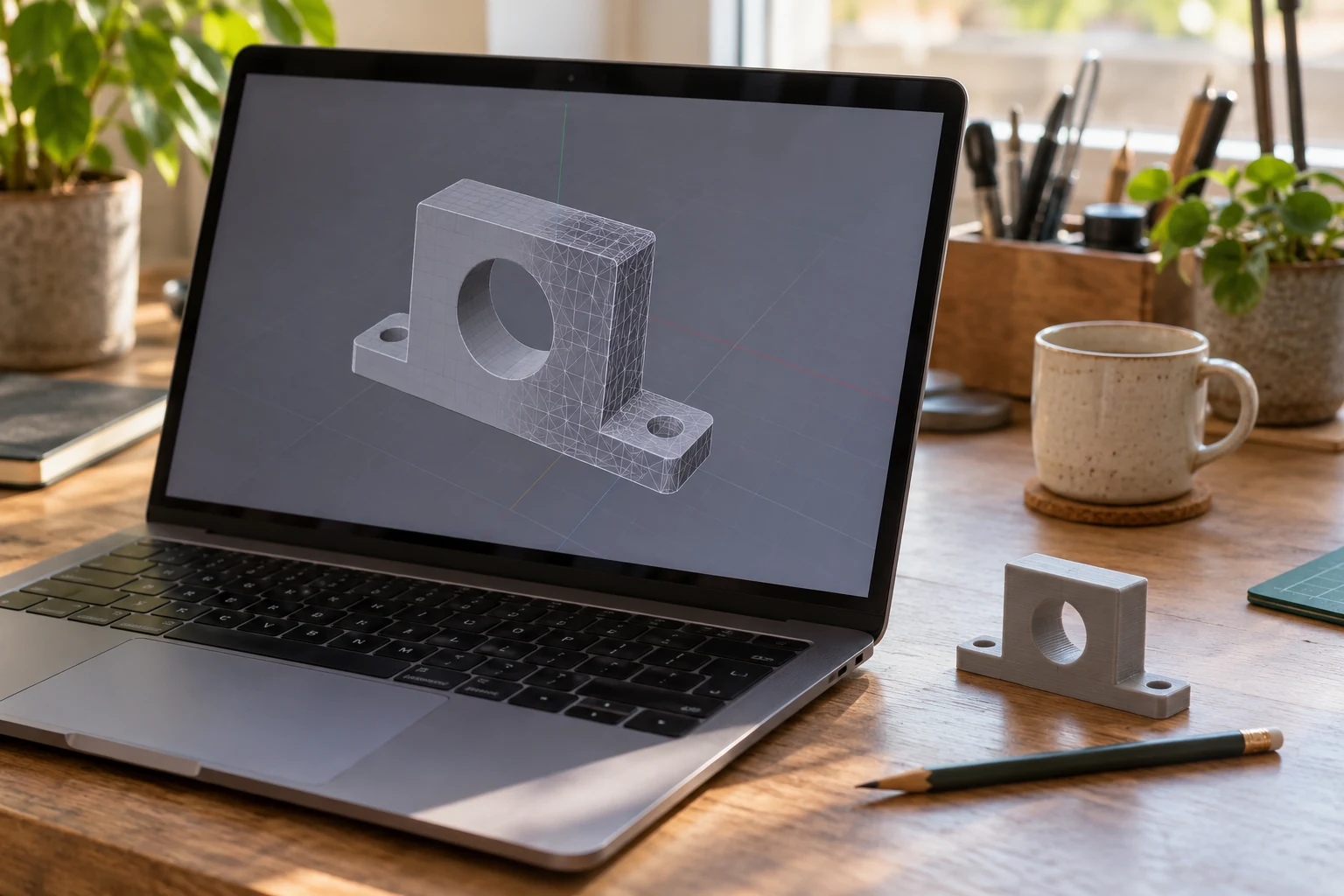
The calculator accepts binary and text STL, plus OBJ geometry. Export STEP and 3MF to STL or OBJ from software that can open the original project. Renaming an extension does not convert the contents. Keep the original CAD project separately in case dimensions need to be changed.
OBJ textures are not transferred to the printed order. Color is selected separately in the calculator. A colored screenshot and a geometry file therefore serve different purposes. Letters, raised details and holes must exist in the geometry, rather than merely appearing as a texture on screen.
Check the real size before estimating
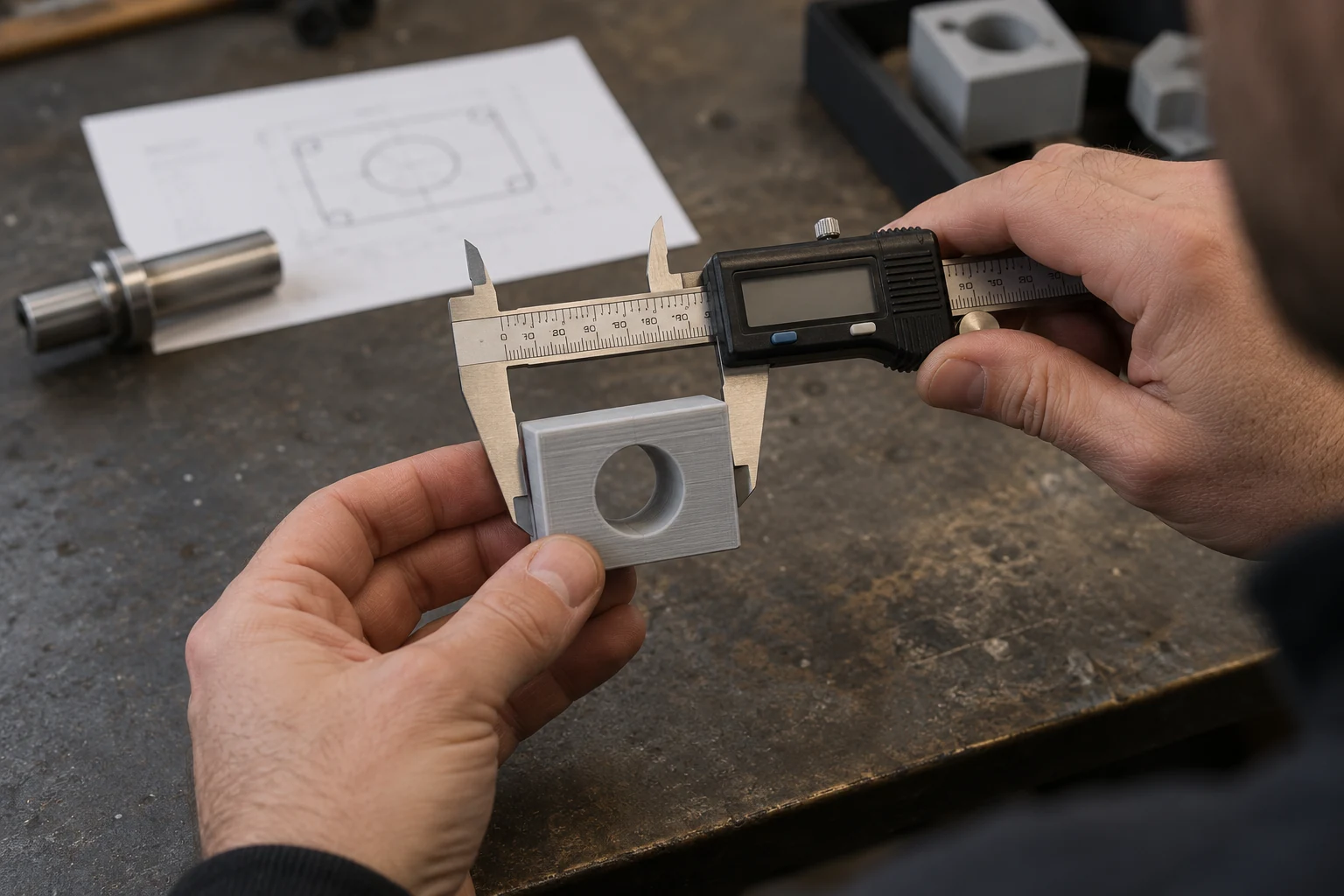
Compare the viewer’s dimensions with the physical object. For example, a lid 8 cm long should measure 80 mm. If the model suddenly seems far too large or small, check units and scale first. Its size on the screen is not a reliable indication of its physical size.
Uniform scaling changes holes, wall thickness and mounting features as well as outside dimensions. Lengthening a housing while retaining the screw positions requires a model edit. Send that requirement through the project form rather than trying to fix it with a global scale change.
Check that the surface describes a usable volume
Printing needs geometry with a clear internal volume. Open surfaces, intersecting fragments and unnecessary internal faces can complicate preparation. Some errors can be repaired automatically; others need manual work. After a repair, check that the intended shape and openings are still present.
If an upload is rejected, retain the error text and say which software created the file. Exporting again from the original project may be more useful than repeatedly saving a damaged copy. More mesh detail increases file size but does not automatically make the physical part more useful.
Make the contents and final version unambiguous
For an assembly, list its components and the quantity of each. Explain whether a lid should be printed separately and what multiple objects inside one file represent. Agree a set of different models with the workshop first. Automatic quantity pricing applies to the selected model, rather than an arbitrary mixed collection.
Use a clear final filename such as housing_v3_80mm.stl. Describe what changed from the earlier version. If you send an amendment after submitting a request, wait for confirmation of the version accepted for production. Almost identical previews can otherwise hide an important revision.
A final check before sending the order
Confirm the correct version, physical size and quantity, then include the purpose and critical mating features in the comments. Read about surface finish for visible-face requirements and the fasteners and snap-fits guide for connections.
Upload the model to the cost calculator once those checks are complete. If any geometry is uncertain, explain the issue before production. The online preview shows shape and dimensions; it does not automatically verify engineering suitability, manufacturability or fit.
Common questions
Can I use a screenshot instead of an STL?
The automatic estimate needs geometry. A screenshot can accompany a project description, but the dimensions and model would need to be established separately.
Can I ZIP a file that is larger than 20 MB?
The calculator takes the STL or OBJ itself, rather than a ZIP. Discuss simplifying the mesh while retaining the important dimensions, or contact the workshop about the source file.
Technical references
Manufacturer guides explain printing and design principles. We agree the requirements for your particular part before production.
Find out what your model will cost.
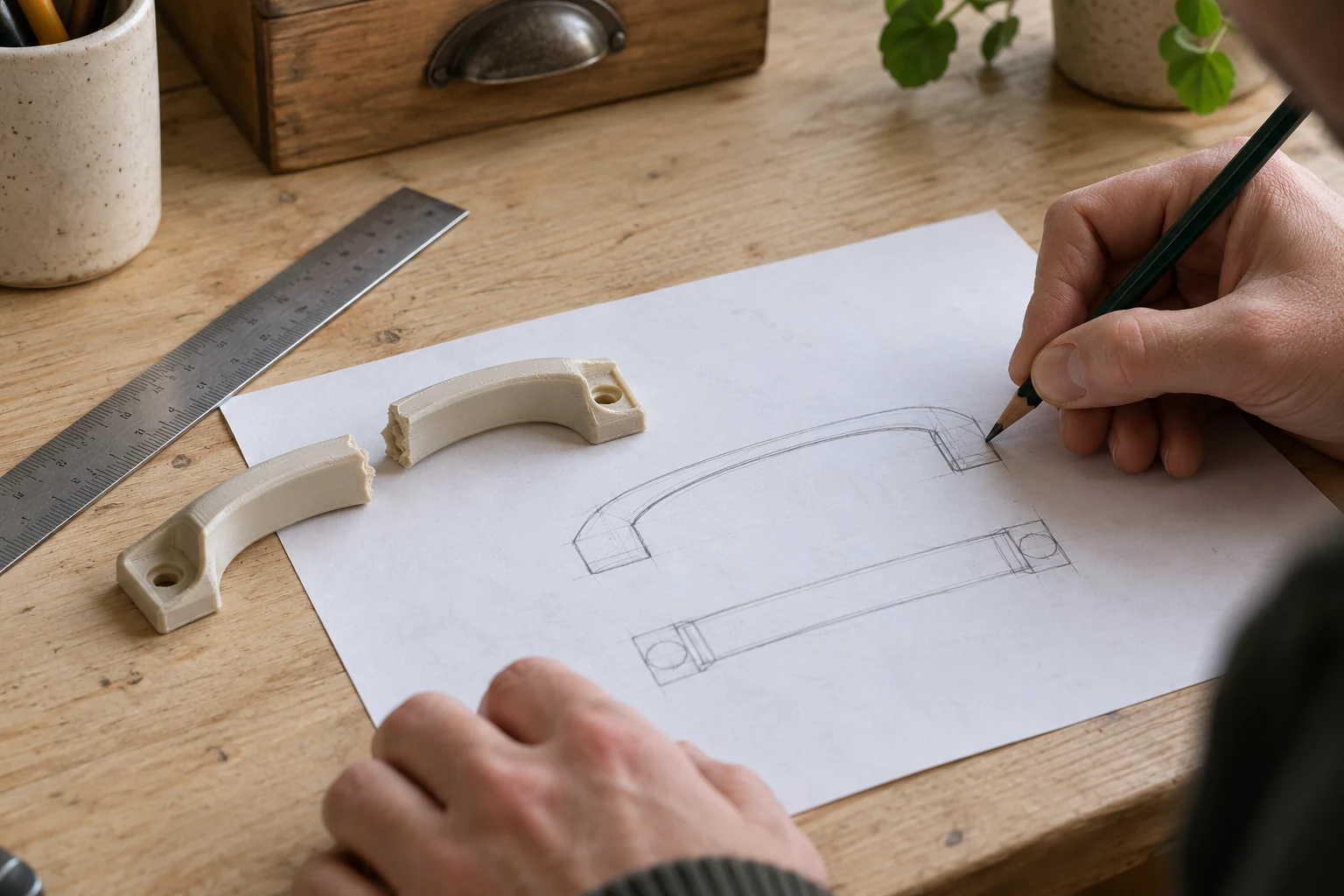
Upload an STL or OBJ. If you do not have a file, send photos, a sketch and measurements. Modeling and printing are quoted separately.
Back to DECORDS 3D